
IPHONE APP
Fewer cards.
More space.
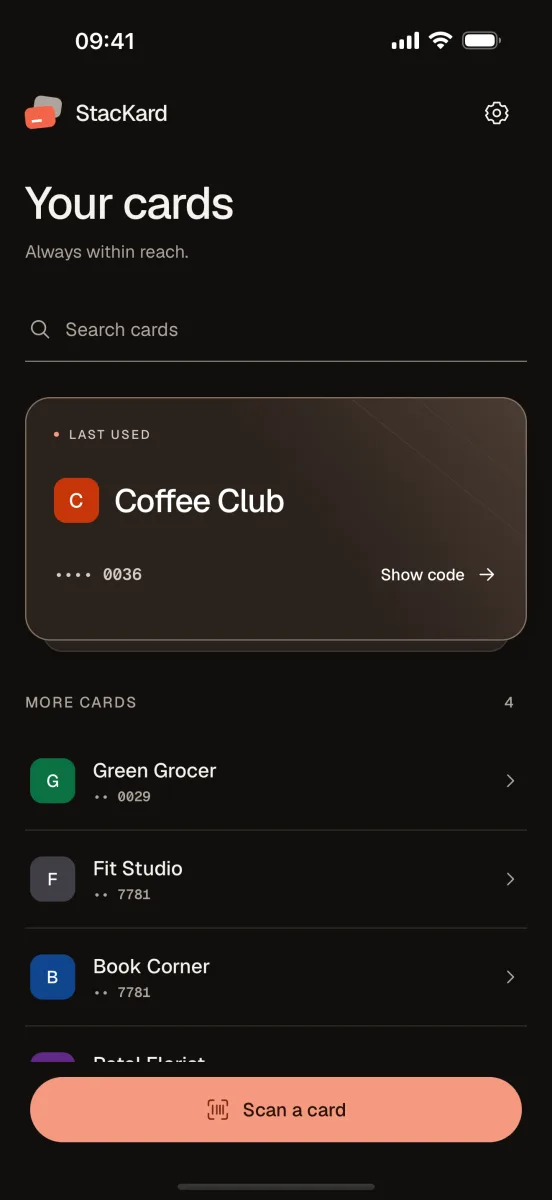
Scan a card’s barcode or QR code, give it a name and open it at checkout. All your loyalty cards in one wallet, even without internet.
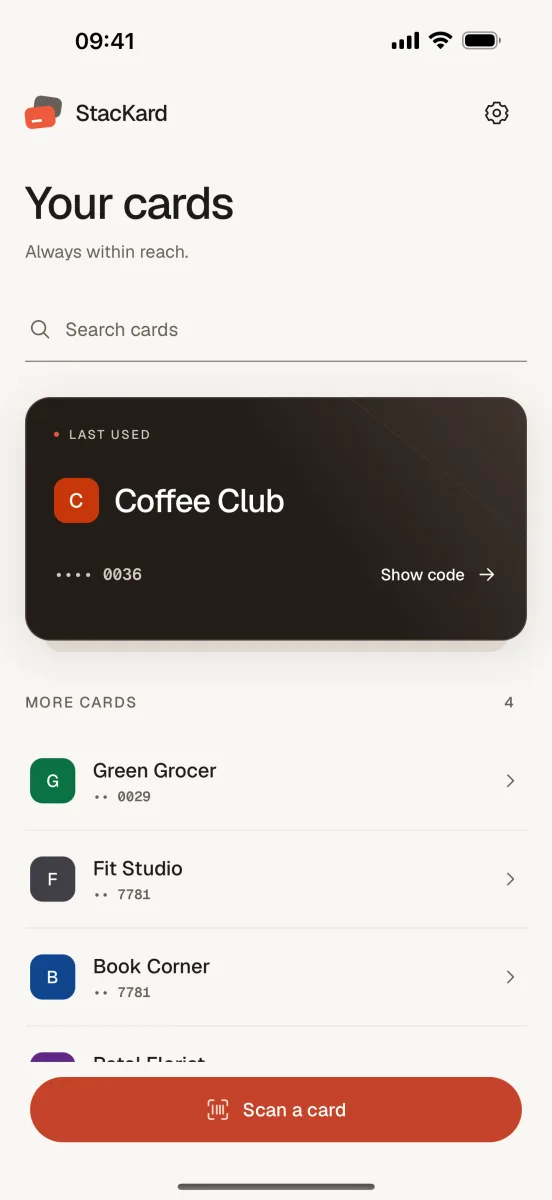
A card wallet that stays out of the way.
Scan or type
The camera recognizes barcodes and QR codes. Without a camera, type the number.
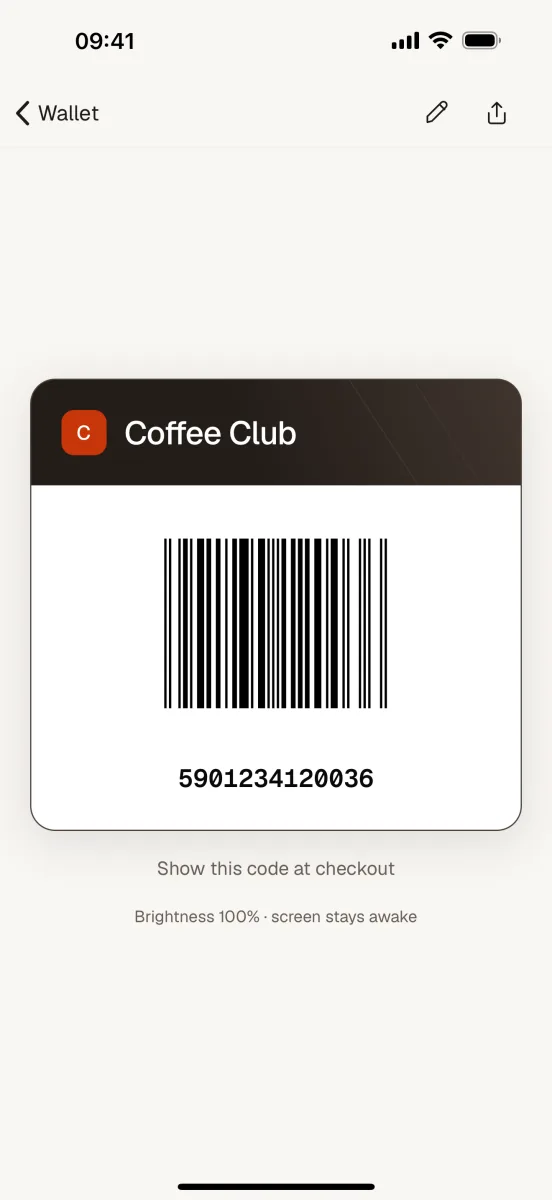
Ready at checkout
A large code on a white background with the number below. The screen brightens and stays on.
Find it fast
Search and usage order: the card you used last is always on top.
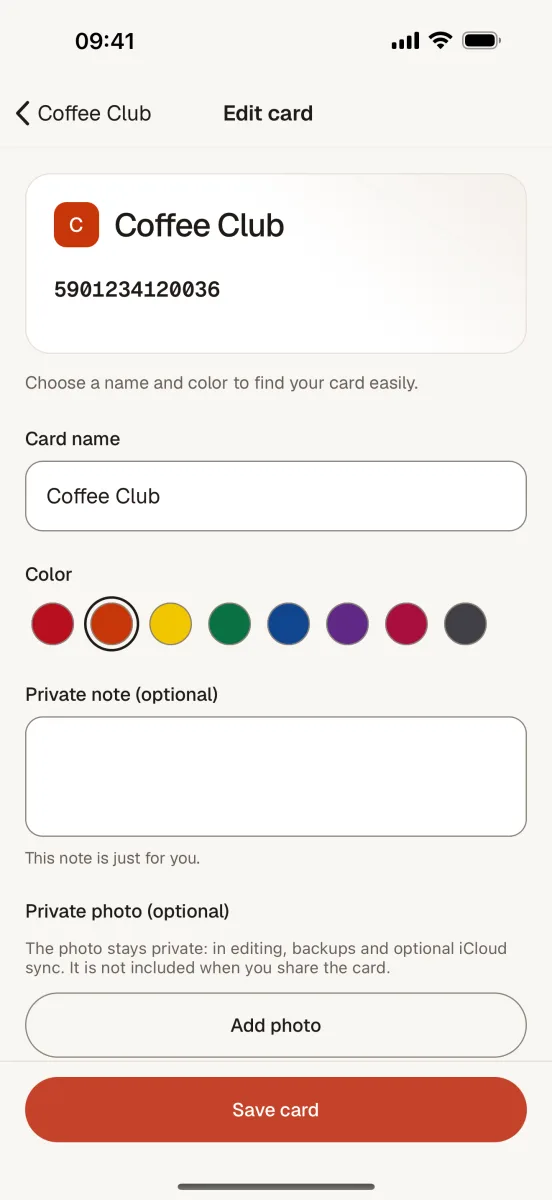
Make each card yours
A name and color for every card, plus a private note or photo.
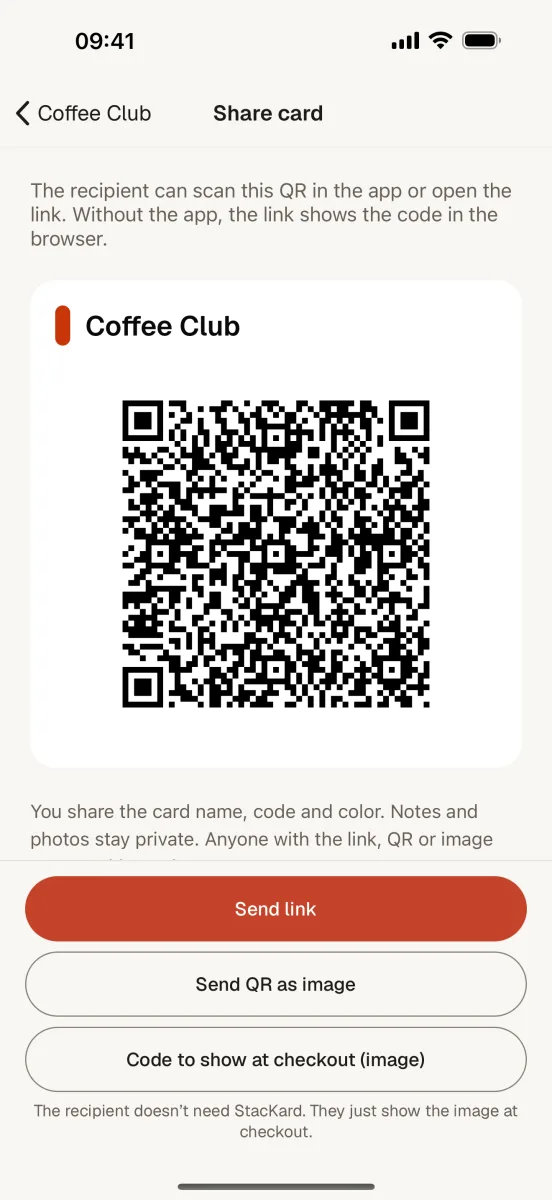
Share a card
Send a card by link, QR code or image. Notes and photos are never shared.
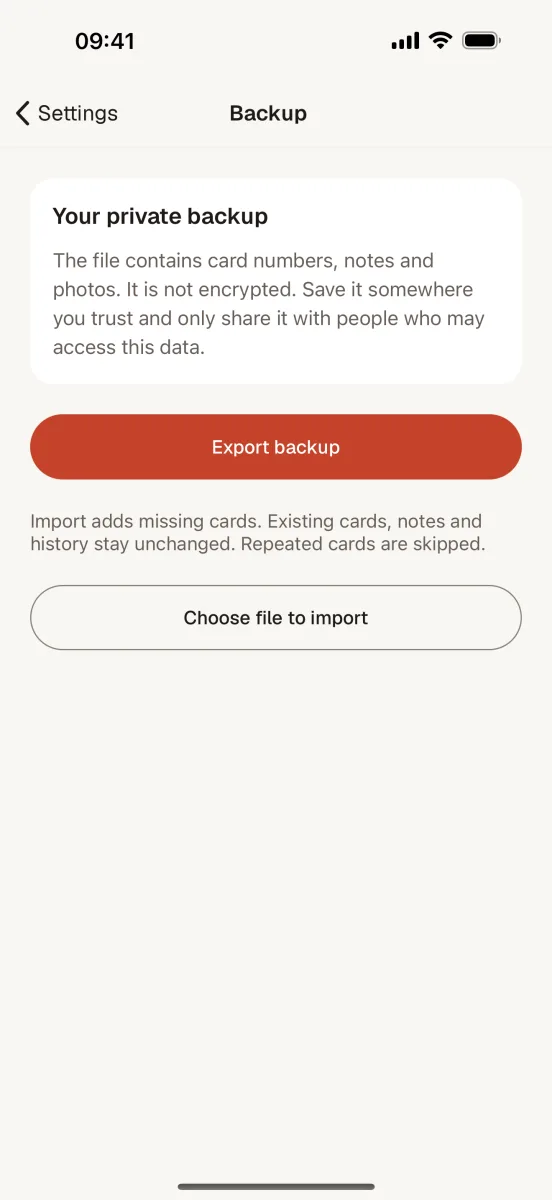
iCloud and backup
Optional sync with your private iCloud, plus full backup export and import.
Your cards stay with you.
StacKard has no accounts and no server of its own. Your cards are stored on your phone. If you turn on iCloud, they are also kept in your Apple account’s private database, which we cannot access.
Privacy policyPrice
Free
Languages
9
Theme
Light and dark
Frequently asked questions
How do I add a card?
On the wallet screen, choose “Add card” and scan the code with the camera. If the code doesn’t scan or you’d rather not use the camera, choose “Enter number manually”.
The checkout scanner can’t read the code from my phone.
When showing a code, StacKard brightens the screen and keeps it on. Not every store scanner can read codes from a screen. In that case, give the number shown below the code or use the physical card if the store requires it.
How do I move my cards to a new phone?
Turn on iCloud in the app’s Settings on both iPhones, or choose Settings → Backup → Export backup and import the file on the new phone. Import adds missing cards and leaves existing ones unchanged.
What does someone see when I share a card?
The link and QR code contain only the card’s name, number, format and color. Notes and photos stay private. Anyone who receives the link or QR can use the card.
How do I delete a card or all my data?
Delete a card from its editor with “Delete card”. To delete all data, delete the app. Remove iCloud data in the iCloud settings on your iPhone.
Does StacKard cost anything?
No. The app is free, with no ads or in-app purchases, and iCloud sync costs nothing.
Something not working or missing?
Write to us. Please don’t include card numbers, photos or backups in your message.